Video Background Blur: Hide Clutter Instantly
One click and your messy room disappears behind a soft, cinematic blur. Our browser-based tool runs an AI segmentation model on your GPU to isolate your silhouette and selectively blur everything behind you — perfect for meetings, interviews and tutorials where you need privacy without looking artificial. No plugins, no green screen, no file upload, no waiting in a render queue.
Free video background remover. Works as well as possible on video. Edges are auto-smoothed for stable results. Runs on your device, no upload, no watermark.
AI Video Background Remover
Drag & drop a video, or choose a source. Everything runs locally. Portrait and landscape videos both work.
Loading AI model…
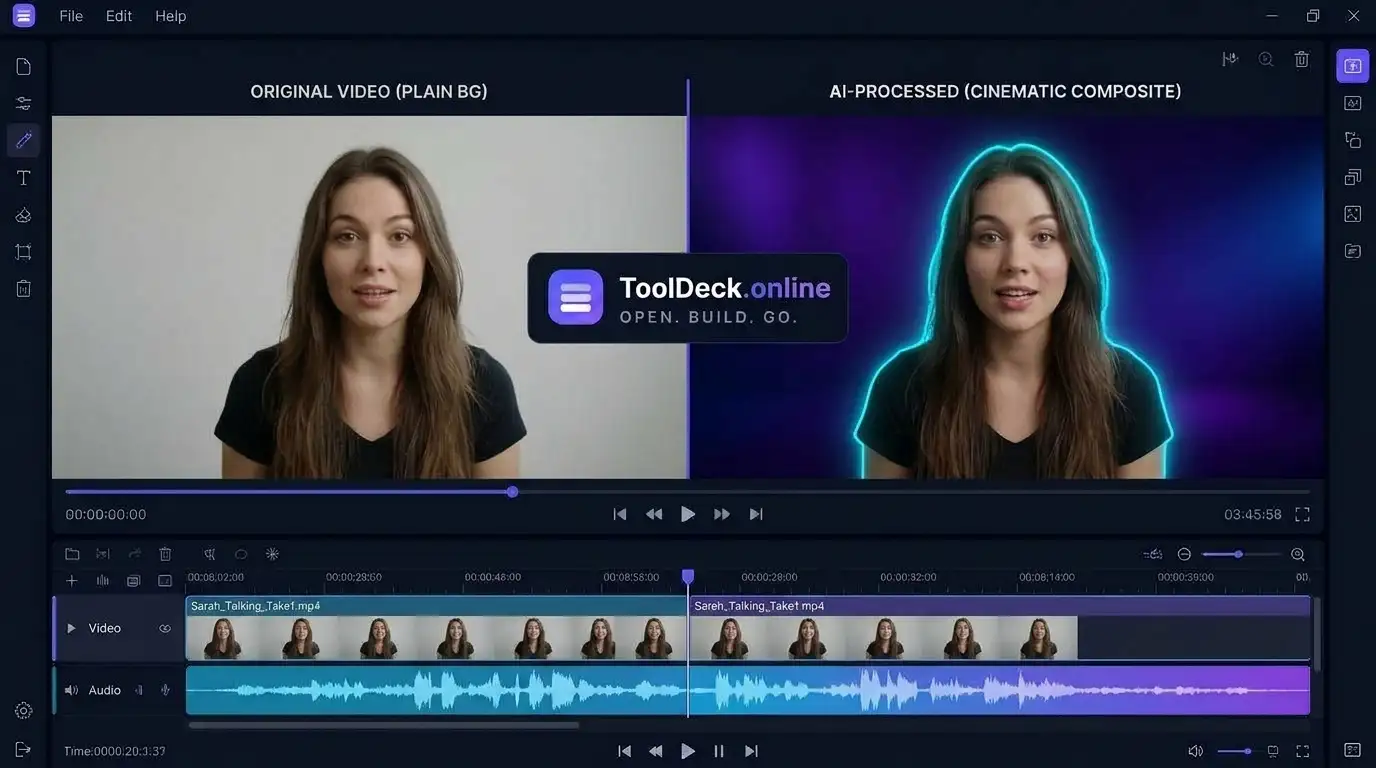
Live AI Background Blur
How does AI video background blur work?
MediaPipe’s Selfie Segmentation network runs directly in your browser via WebGL and classifies every pixel as person or background on every frame. The background pixels get a Gaussian blur (2px to 40px, your choice), while your subject stays razor-sharp. The result matches what a shallow depth-of-field camera lens produces — the same effect your phone calls “portrait mode” — but it works on any video, live webcam, or pre-recorded file.
| Feature | Details |
|---|---|
| Price | Free forever — no sign-up, no watermark, no limits |
| Green screen needed? | Never — AI segmentation on every frame |
| Upload required? | No — everything runs locally via WebGL |
| Blur range | 2px (subtle) to 40px (heavy privacy) |
| Input formats | MP4, WebM, MOV or live webcam |
| Output | WebM (VP9 + Opus, 8 Mbps) + PNG snapshots |
| Subject controls | Brightness, contrast, saturation, mirror flip, soft shadow |
| Privacy | Footage never leaves your device |
How to blur a video background in 5 steps
- 1
Upload a clip or start camera
Drag in an MP4, WebM or MOV, or click "Use Camera" for live webcam. Files stay on your device — no upload queue.
- 2
AI isolates your silhouette
MediaPipe Selfie Segmentation separates you from the room on every frame — no green screen needed.
- 3
Set your blur strength
Blur is selected by default. Drag the slider from 2px (subtle portrait bokeh) to 40px (heavy privacy wash) until it feels right.
- 4
Tune edges & subject grading
Feather edges 2–4px for natural hair, adjust mask threshold if needed, and grade brightness/contrast/saturation if you want a more cinematic look.
- 5
Record and download
Hit Record to export WebM with audio, or grab a PNG snapshot. Use the file anywhere — Zoom, YouTube, presentations, social.
Blur strength cheat sheet
| Strength | Effect | Best for |
|---|---|---|
| 2–6px | Subtle shallow depth-of-field | Cinematic content, testimonials, interviews |
| 8–15px | Classic portrait bokeh | Meetings, tutorials, talking heads |
| 16–25px | Room context visible, details hidden | Privacy-critical client calls |
| 26–40px | Near-solid colour wash | Maximum privacy, background motion hides |
Why ToolDeck beats app-built-in blur
| App built-in | ToolDeck | What you gain |
|---|---|---|
| Fixed blur strength | Adjustable 2–40px slider | Match any footage and mood |
| Requires app install (Zoom, Teams) | Works in any modern browser | No software, works on locked-down devices |
| Processes in cloud | 100% local via WebGL | Full privacy, works offline after model load |
| Watermark on free tiers | No watermark, no paid tier | Commercial use, no attribution |
| Blur applied to whole frame | Only the background — you stay sharp | Looks like a real portrait lens |
| Can't export video file | Record with blur baked in | Reuse across platforms |
Pro tips for natural-looking blur
Face a window, not the wall
Front-lighting makes the mask confident. A window behind you will blow out the cutout and leave you silhouetted.
8–15px is the sweet spot for meetings
Soft enough to hide clutter, sharp enough that you don't look like a floating head. 25px+ looks obviously filtered.
Use the shadow toggle for extra depth
The soft drop shadow adds a subtle contact shadow that grounds you in the blurred room — surprisingly cinematic.
50% render scale on laptops
Blur hides resolution loss completely. Dropping to 50% roughly triples FPS with no visible quality hit.
Blur hides background motion
A spinning fan or walking partner becomes a soft wash of colour. Better than replacement for busy rooms.
Record in Quality mode for uploads
For pre-recorded clips, you don't need real-time FPS. Use Quality mode and 100% resolution for the cleanest output.
Who uses video background blur?
Remote workers
Blur the home office on every Zoom, Teams and Meet call — look professional without tidying up.
Healthcare & legal
Protect confidential office details from recorded consultations without a full background replacement.
Interview coaches
Make a strong first impression on video interviews without buying studio equipment.
YouTubers
Add a cinematic shallow depth-of-field to webcam footage that would otherwise look flat.
Teachers
Blur the classroom or living room while keeping the focus on the lesson and your face.
Privacy-conscious professionals
Hide family photos, whiteboards and personal details — without raising suspicion that you're on a green screen.
Browser support
| Browser | Experience | Notes |
|---|---|---|
| Chrome / Edge | Excellent | Full 30 FPS segmentation with GPU acceleration and VP9 recording |
| Firefox | Very good | Fully supported; VP8 recording fallback where VP9 is unavailable |
| Safari (16.4+) | Good | Supported on Apple Silicon; enable hardware acceleration for best FPS |
| Mobile browsers | Works | Use Performance mode + 50% render scale for smooth playback |
Troubleshooting
Preview is laggy on a laptop
Switch Performance Mode to Performance, drop Render Resolution to 50%, and close GPU-heavy tabs. Plug in — battery mode halves FPS.
Blur looks fake or overly uniform
Reduce strength to 8–12px. Real bokeh has subtle variation — very high blur loses that. Add a soft drop shadow for depth.
Hair or shoulder edges look boxy
Raise Edge Feathering to 2–4px and lower Mask Threshold slightly so softer pixels are kept.
AI model won't load
Enable hardware acceleration in browser settings and allow CDN access (jsdelivr, googleapis) for the one-time model download.
Parts of my body disappear
Lower Mask Threshold to ~0.4, or switch to Full-Body model if the shot is wide.
Recording has no sound
Enable "Include audio" in the Export tab before recording. Camera mode needs mic permission; uploads mix the source soundtrack.
Background ghosting between frames
Use Quality mode so every frame is segmented. Avoid very fast motion against low-contrast backgrounds.
Downloaded file is WebM, not MP4
Browsers encode as WebM by design. Convert to MP4 locally with the ToolDeck Video Converter.
Video Background Blur FAQ
How do I blur my video background?
Upload a clip or turn on your camera, then open the Background panel and choose the Blur preset. Adjust the blur strength slider from 2px to 40px until the room is softly out of focus. Export via Record — the blur is baked into the WebM.
Is video background blur free?
Yes — completely free, no sign-up, no watermark, no upload limit, no daily caps.
Is my video uploaded to a server?
No. Everything runs locally in your browser on your GPU. Your files never leave your device. Nothing is transmitted to any backend.
Does it work on webcam video, or only uploaded files?
Both. Upload MP4, WebM or MOV files, or process your live webcam in real time with the same AI segmentation.
Can I record a blurred video to share?
Yes — click Record Video to export WebM with your blurred background baked in. Audio is included if enabled in the Export tab.
Does it work in Chrome, Safari and Firefox?
Yes, all modern browsers. For best performance use Chrome or Edge on a machine with a GPU. Safari works but can be slower on older Macs.
How is a blurred background different from a virtual background?
A blur keeps your real environment visible but out of focus — the viewer can still tell it's a room, just a soft one. A virtual background replaces it entirely with an image, colour or video. Blur reads as more natural and private; replacement reads as more branded and produced.
What blur strength should I use?
Meetings and interviews: 8–15px. Cinematic content: 2–6px. Privacy-critical calls: 16–25px. Maximum privacy: 26–40px. All easy to test live.
Can I blur just part of the background?
The AI blurs the entire background uniformly. For selective blur, use the subject drop-shadow effect to add depth, or export a green screen and do selective blur in an NLE.
Does it work on vertical videos for TikTok and Reels?
Yes. The tool preserves the source aspect ratio, so vertical uploads export as vertical with the blur baked in.
Is blur better than removing the background?
Depends on intent. Blur is more natural and less distracting. Removal is better for branded content, tutorials and anywhere you want a clean slate. Both available in this tool.
Can I add a drop shadow on top of the blur?
Yes — toggle Soft drop shadow in the Subject tab. It adds a subtle shadow under your shoulders, giving the composite a grounded, cinematic feel.
Does blurring affect video quality?
The subject stays sharp — only the background is blurred. Export quality matches your source resolution times the render scale you choose. At 100% render scale and Quality mode, output matches the input.
What is the difference between blur and portrait mode?
Portrait mode on phones is exactly what we're mimicking — a shallow depth-of-field effect that separates subject from background. The AI version works on any video, not just the ones your phone captured.
Can I use this for live streams?
Yes. Feed the live canvas into OBS Virtual Camera for real-time streaming with a blurred background. Works with Twitch, YouTube, TikTok LIVE and any RTMP platform.
Does it work offline?
After the first load, the model is cached. Once cached, you can process video entirely offline with the page already open.
Can I use the output commercially?
Yes. Everything you create is yours. No license restrictions, attribution requirements or watermarks on exports.
Your video stays on your device
No upload, no account. The AI model runs inside your browser using WebGL and WebAssembly. Your footage never leaves your device — you can disconnect from the internet after the model loads. Read how we keep it private.
More free video tools
Edit, convert or process media. Nothing uploaded, ever.
Video Background Remover
Full AI background removal with 6 modes.
Virtual Background Maker
Custom backgrounds for Zoom & Teams.
Remove BG Without Green Screen
AI removal, no chroma key needed.
Video Background Blur
You are hereBlur your room to hide clutter.
Replace BG with Image
Drop any photo behind you.
Virtual Green Screen Maker
Export pure #00FF00 for chroma key.