Free AI Image Upscaler: Upscale Images Online
Increase image resolution and improve image quality by enlarging photos 2x, 4x, 8x or any custom size up to 16x. Upscale up to 20 photos at once with AI Enhance or Fast mode. 100% secure. Nothing uploaded, nothing stored. The AI rebuilds edges and texture instead of just stretching pixels. No watermark, no sign-up.
- 100% secure and private
- 2x, 4x, 8x or custom up to 16x
- Up to 20 photos at once
- No sign-up, no watermark
- 1Add up to 20 photos
- 2Pick 4K, 8K or an exact size like 8000 x 8000
- 3Download or get them all as a ZIP
Processed on your device. Your photos are never uploaded. How we keep it private
- 100% Secure
- No Upload
- No Storage
- No Sign-up
- No Watermark
What is an image upscaler?
An image upscaler makes a photo bigger and increases its resolution, so a small or low-quality picture can be printed, shared or used at a larger size. Basic resizing just stretches the existing pixels, which looks blurry. An AI image upscaler works out where edges, texture and fine lines should be and rebuilds them, so the enlarged photo looks sharper. Use it to enlarge a photo without losing quality, to fix small or old pictures, or to prepare images for print. Everything here runs in your browser, so your photos stay private.
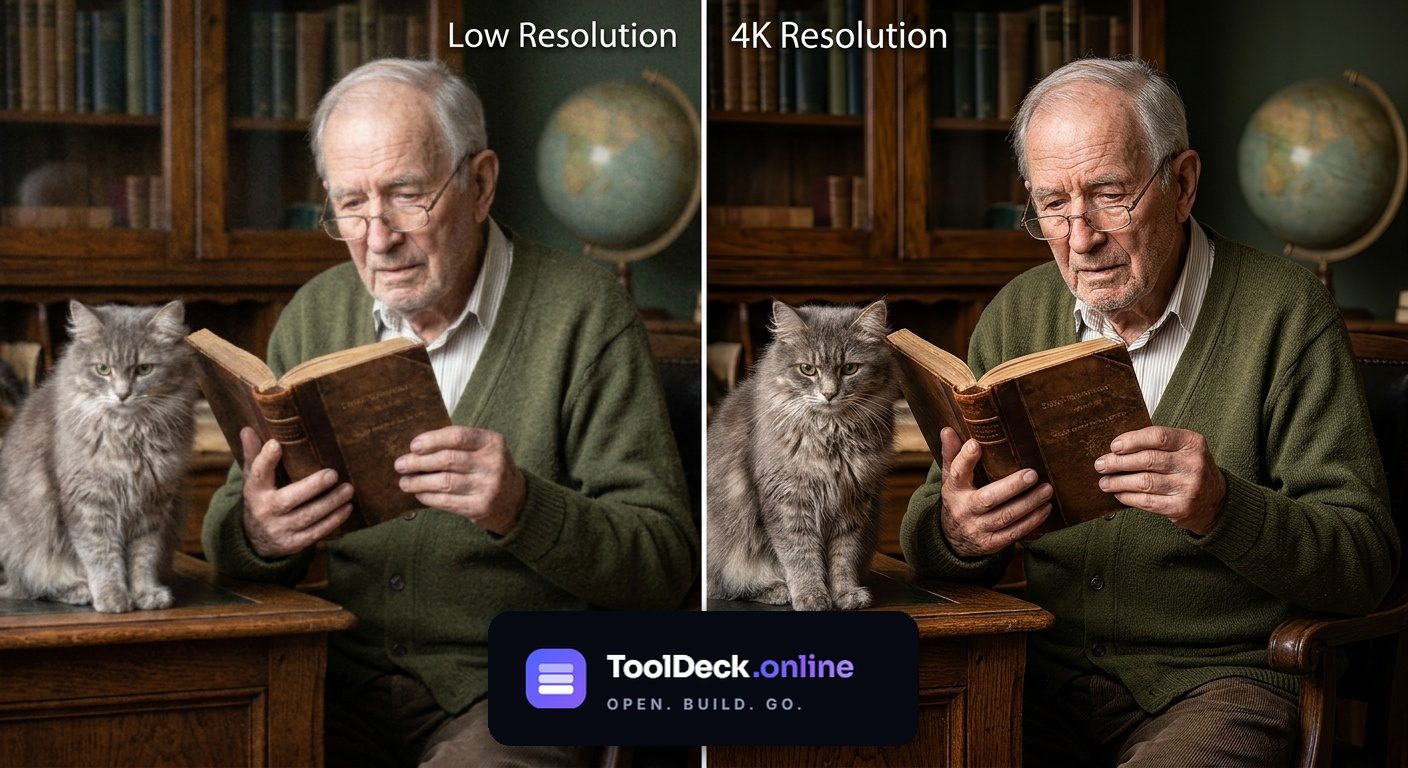
4x AI Upscaling (Before & After)
Which scale should you pick?
Presets cover most needs. Custom mode unlocks any integer scale from 2x to 16x, limited by a 64 megapixel browser canvas cap.
| Scale | Example output | Best for |
|---|---|---|
| 2x | 1000 x 1000 becomes 2000 x 2000 | Large batches, subtle quality lift, low-RAM devices |
| 4x | 1000 x 1000 becomes 4000 x 4000 | The balanced default for most photos, print-ready output |
| 8x | 800 x 800 becomes 6400 x 6400 | Very small originals, posters, large format print |
| Custom 2x to 16x | Slide to any integer | Matching an exact target size, unusual proportions |
Why we cap batches at 20 photos
Enlarging photos is memory-heavy. A single 25 MB photo can use 100 MB or more while it is being processed. We tested batches of 30, 40 and 50 photos. They crash low-end laptops and most phones, often losing the whole batch. So we chose 20 as the safe maximum that works on almost every device, including phones and laptops with 4 GB RAM. If your device is struggling, upscale in smaller batches of 5 to 10 and use Fast mode with 2x size.
Why this tool is the best choice
Everything runs on your device. Faster, safer and free from the usual online-upscaler trade-offs.
| Feature | TToolDeck | Typical online upscalers |
|---|---|---|
| Nothing uploaded to a server | Yes | No |
| No sign-up or email | Yes | Partial |
| No watermark on output | Yes | Partial |
| Batch up to 20 photos at once | Yes | Partial |
| AI mode and Fast mode | Yes | Partial |
| 8x preset and custom 2x to 16x | Yes | Partial |
| Adjustable sharpness slider | Yes | Partial |
| Before / after compare slider | Yes | Partial |
| ZIP download for batches | Yes | No |
| Safe on low-end PCs | Yes | No |
Comparison is a general overview of common patterns across online image upscalers. Features vary by site and may change.
All image tools
Free browser-based image tools. Nothing uploaded, ever.
Image Upscaler
You are hereEnlarge photos 2x, 4x, 8x or any custom size
Image Resizer
Resize photos with social and passport presets
Image Compressor
Shrink JPG, PNG and WebP to a target size
Image Converter
Convert between 18 image formats
HEIC to JPG
Convert iPhone photos to open anywhere
JPG to PDF
Turn JPG photos into a PDF document
Background Remover
Remove the background from any photo
How to upscale an image
- 1
Drop your photos
Drag or click to choose. Add up to 20 photos at once, up to 25 MB each. You can also paste with Ctrl+V.
- 2
Pick a method and size
Choose Fast or AI Enhance, then a preset at 2x, 4x or 8x, or slide to any custom value from 2x to 16x.
- 3
Download the results
Download each photo individually or grab them all as a ZIP. No watermark, no sign-up, no upload.
Everything you get for free
Presets at 2x, 4x and 8x
Three one-tap presets cover most needs. 2x is subtle and safest for large batches. 4x is the balanced default. 8x gives the largest result and works best on small originals.
Custom scale up to 16x
Need something in between? Switch to Custom mode and slide from 2x to 16x. Live preview shows the exact output pixel size before you press Upscale.
Two methods: AI Enhance or Fast
AI Enhance uses a neural network to rebuild edges, hair, fabric and text. Fast uses high-quality resampling plus sharpening. Finishes in seconds. Switch between them with one click.
Upscale up to 20 photos at once
Add up to 20 photos in one batch and download them one by one or as a ZIP. We chose 20 as the safe maximum so even low-end laptops and phones do not run out of memory.
100% secure, nothing uploaded
Photos are opened, enlarged and saved by your own browser. Nothing is sent to a server. Private photos, client work and family pictures never leave your device.
Adjustable sharpening
In Fast mode, control the sharpening strength from 0 to 100%. Low values keep a natural look. High values bring out detail in soft photos.
Before and after compare slider
After enlarging, drag a slider across the photo to compare original and result side by side. The clearest way to see the difference.
PNG, JPG and WebP output
PNG keeps every pixel and is sharpest. WebP is 25 to 35% smaller at the same quality. JPG opens everywhere. Pick the format that fits your use.
Safe on low-end devices
The 20-photo cap, auto-downgrade to 2x on big batches, and a clear memory warning protect laptops and phones with 4 GB RAM or less from crashing.
What people use it for
Print a small photo larger
Enlarge a 600px image to a printable 2400px A4 without the blurry, stretched look that basic resizing gives.
Fix old scans and photos
Old scanned family photos look soft and small. AI Enhance rebuilds edges so you can print or share them at modern quality.
Prepare images for print
Product photos, posters and print-on-demand need 300 DPI at the print size. Upscale small originals to hit the target resolution.
Sharpen screenshots
Screenshots from old apps or low-res games look blocky when enlarged. AI Enhance fills in the gaps for clean, readable results.
Batch-process product photos
Enlarge a whole product catalog at once. Add up to 20 photos, upscale them all, and download the batch as a ZIP.
Restore social media photos
Photos from old posts are compressed and small. Upscale them back to a size that looks sharp on modern screens and in print.
Questions people ask
How do I upscale an image for free?
Drop your photo into the tool above, choose Fast or AI Enhance, pick 2x, 4x, 8x or a custom size, and click Upscale. Download the enlarged image when it finishes. It is free, with no sign-up, no watermark and no upload, because everything runs in your browser.
How do I increase image resolution?
Upscale the image. Choose a scale such as 2x or 4x and the tool makes a larger version with more pixels, for example a 1000 x 1000 photo becomes 4000 x 4000 at 4x. AI Enhance rebuilds edges and texture as it enlarges, so the result looks sharper than simply stretching the photo.
How do I improve image quality?
For a small or soft photo, upscale it with AI Enhance, or use Fast mode and raise the sharpness slider. Then save as PNG for the best quality. Upscaling makes a low-resolution photo look cleaner at a bigger size, but it cannot restore detail the camera never captured.
Can I resize an image without losing quality?
Enlarging with plain stretching makes photos blurry. This tool uses high-quality resampling with sharpening, or AI Enhance, to keep edges clean when you make a photo bigger. For making images smaller, use our Image Resizer or Image Compressor instead.
Are my photos uploaded anywhere?
No. Your photos are opened, enlarged and saved by your own browser. They never leave your device. The only things downloaded are the page itself, the small AI engine code, and the AI model file the first time you use AI Enhance.
Is this a free AI image upscaler?
Yes. AI Enhance and Fast mode are both free, with no sign-up, no daily limit and no watermark on your results. ToolDeck may show ads to pay for hosting, but they never lock a feature.
Why is the batch limit 20 photos?
Enlarging photos uses a lot of memory. Each 25 MB photo held for processing can use 100 MB or more in RAM. A batch of 20 photos with Fast mode is safe on almost every device, including laptops and phones with 4 GB RAM. Higher batches would crash low-end devices and lose work. We chose 20 as the safest maximum that still handles real work.
Will upscaling 20 photos crash my phone or laptop?
Not if you follow two simple rules: close other browser tabs before starting, and use Fast mode with 2x size for large batches. Devices with 4 GB RAM or less may still slow down noticeably with 15 to 20 photos. If your device struggles, upscale in smaller batches of 5 to 10.
What is the difference between AI Enhance and Fast?
AI Enhance uses a neural network to rebuild edges and texture, so enlarged photos look sharper and more natural. It takes longer, especially on big photos. Fast uses smooth enlarging with a sharpening step and is the default. It finishes in seconds and works on any photo, but it cannot invent new detail.
Why is AI Enhance slow on my photo?
The AI works through your photo in small tiles, and it runs on your own device. A phone or an older laptop will be slower than a desktop with a modern graphics card. Photos above about 1.5 megapixels can take a few minutes. If you are in a hurry, choose Fast.
Which size should I pick, 2x, 4x or 8x?
2x keeps the most natural look and is the safest choice for large batches. 4x is the balanced default for most photos. 8x gives the largest result and works best on photos that are small to begin with. If you need a specific output size, switch to Custom and slide to any value from 2x to 16x. If a size is greyed out, the result would be too large for a browser tab.
How large can the output be?
The browser canvas limit is about 64 megapixels and 12,000 pixels per side. That means a 2000 x 2000 photo can go up to about 8x, but a 4000 x 4000 photo tops out at around 4x. If you pick a scale that would exceed the cap, that scale is disabled and any photos that would exceed it are skipped with a clear note.
Which file format should I save as?
PNG is the sharpest and has no quality loss, but the files are large. JPG and WebP make much smaller files with a small loss in quality. Pick WebP if you want small files and your app supports it, and JPG for the widest compatibility. For big batches, WebP saves memory and time.
Can this fix a blurry or out-of-focus photo?
It can make a low-resolution photo look cleaner and sharper at a larger size. It cannot recover detail that was never captured, so a photo that is badly out of focus will still look soft.
What are the file size limits?
You can add up to 20 photos at once, up to 25 MB each. AI Enhance works on photos up to about 8 megapixels. Larger photos use Fast automatically. The enlarged result can be at most 64 megapixels and 12,000 pixels on its longest side, because browsers cannot handle more than that in a single tab.
Does it work offline?
Once the page, the AI engine and the model have loaded, you can switch off your connection and keep upscaling. Reloading the page offline will not work unless your browser has cached those files.
Can I download all 20 photos as a ZIP?
Yes. After upscaling, click Download all (ZIP) and every finished photo is packed into a single ZIP file. Individual photos can also be downloaded one at a time.
Does it work on iPhone and Android?
Yes. Safari on iOS and Chrome on Android both work. Mobile is slower with AI mode, so Fast mode is recommended on phones. For batches over 10 photos, we recommend a desktop.
Your photos stay on your device
There is no upload step and no account. The enlarging is done by your browser using your own processor or graphics card, and the finished file is saved straight to your downloads. Read how we keep it private.