Virtual Background Maker for Zoom & Microsoft Teams
Create a custom virtual background for your next Zoom, Teams or Google Meet call in seconds — without a green screen, without installing a plugin, and without uploading your video anywhere. The AI runs entirely on your GPU, so your room, your face and your audio stay 100% private.
Free video background remover. Works as well as possible on video. Edges are auto-smoothed for stable results. Runs on your device, no upload, no watermark.
AI Video Background Remover
Drag & drop a video, or choose a source. Everything runs locally. Portrait and landscape videos both work.
Loading AI model…
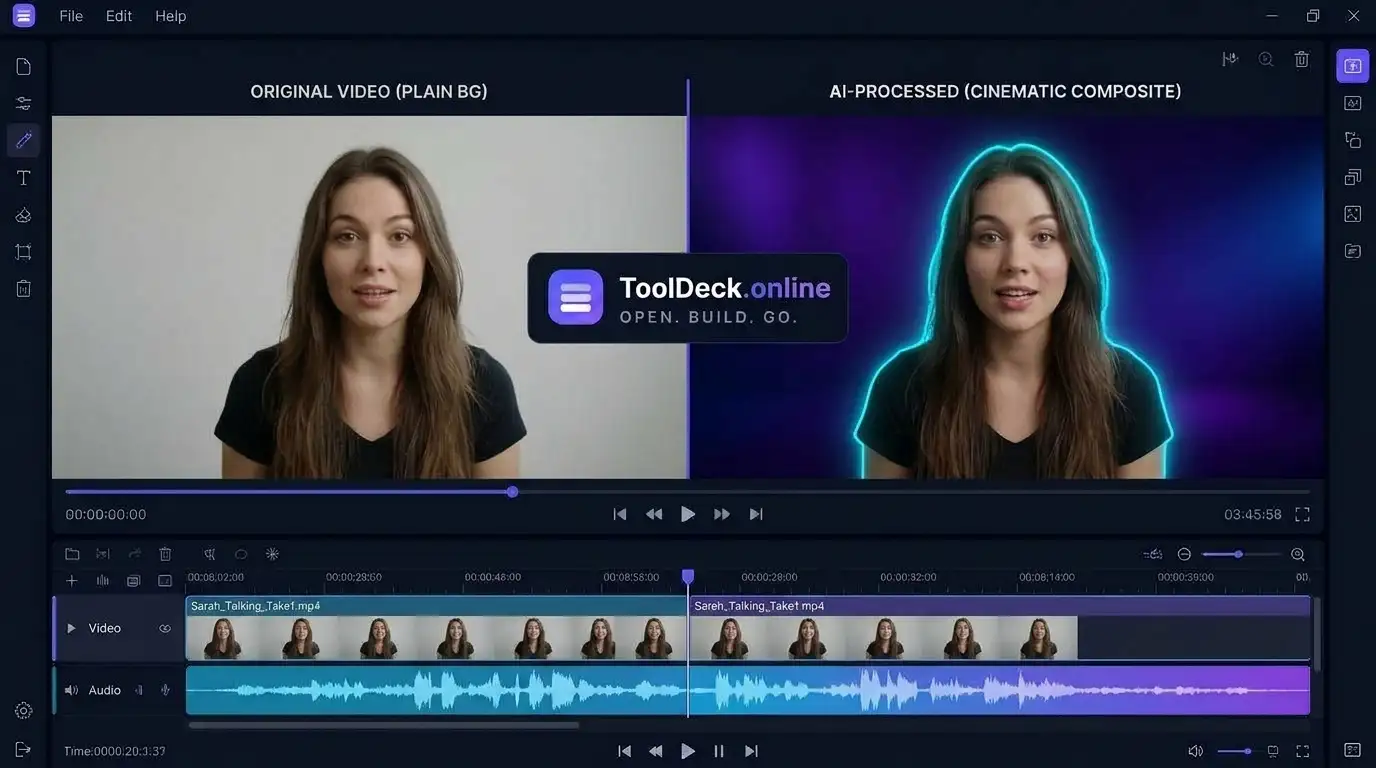
Live AI Virtual Background
How does a virtual background maker work?
The tool runs MediaPipe’s Selfie Segmentation neural network directly in your browser via WebGL. For every video frame, it classifies each pixel as person or background, builds an alpha mask, feathers the edges, and composites you over your chosen backdrop — blur, colour, gradient, image, looping video or pure green. Because everything happens locally, there is no cloud round-trip and no privacy risk. You can record the result as WebM or feed the live canvas into OBS Virtual Camera for real-time Zoom and Teams calls.
| Feature | Details |
|---|---|
| Price | Free forever — no account, no watermark, no trial limits |
| Upload required? | Never. 100% local processing in your browser via WebGL |
| Input formats | MP4, WebM, MOV (uploads) or a live Camera/Webcam stream |
| Background types | Blur, solid colour, gradient, image, looping video, green screen |
| Output | WebM (VP9 + Opus, 8 Mbps) plus instant PNG snapshots |
| AI model | MediaPipe Selfie Segmentation — Upper-Body & Full-Body Landscape |
| Meeting apps | Zoom, Microsoft Teams, Google Meet, Riverside, StreamYard, OBS |
| Subject controls | Brightness, contrast, saturation, mirror flip, soft drop shadow |
| Mask controls | Threshold, edge feathering, 3 performance modes, 50–100% scale |
| Privacy | Frames never leave your device. Close the tab and nothing persists |
How to make a virtual background in 5 steps
- 1
Load your source
Upload an MP4, WebM or MOV clip, or click "Use Camera" to start your webcam. Everything stays on your device — no upload to any server.
- 2
AI isolates your silhouette
MediaPipe Selfie Segmentation classifies every pixel as person or background in real time on your GPU, building a precise alpha mask with no green screen.
- 3
Choose your background
Pick from adjustable blur, solid brand colours with 10 presets, six gradient styles, your own image, a looping video, or pure green screen.
- 4
Fine-tune edges & grading
Adjust mask threshold for tighter cuts, feather edges 2–4px for natural hair, and grade brightness, contrast and saturation so you match the new background.
- 5
Record and use in Zoom
Hit Record to export WebM with audio, or feed the live canvas to OBS Virtual Camera for real-time meetings. Compatible with Zoom, Teams, Meet & more.
Which virtual background type should I choose?
| Type | What it does | Best for |
|---|---|---|
| Blur | Your real room visible but soft-focus, like a portrait lens | Fast, natural, professional meetings & interviews |
| Solid Colour | Flat uniform backdrop with 10 one-click presets | Branded calls, talking-heads, clean lower-thirds |
| Gradient | Six studio-style colour gradients rendered in real time | Modern creator content, thumbnails, streams |
| Custom Image | Any JPG, PNG or WebP fitted with cover-crop | Virtual office, branded set, location fake |
| Looping Video | MP4/WebM plays as a moving backdrop behind you | Dynamic intros, reactions, b-roll composites |
| Green Screen | Subject composited over pure #00FF00 | Export & key in Premiere, CapCut, After Effects, OBS |
For professional client calls, a soft blur is the safest choice — it looks like a shallow depth-of-field lens, not a filter. For branded content and tutorials, a custom image or gradient gives your videos a consistent identity. For YouTube and social content, a looping video backdrop adds motion without distracting. For editors who want to key the subject out later in Premiere or After Effects, green screen mode exports pure #00FF00. Try each mode live — you can switch between them with one click and preview against the original by holding the Original button.
ToolDeck vs Zoom’s built-in virtual background
| Zoom built-in | ToolDeck | What you gain |
|---|---|---|
| Frames routed through cloud servers | Everything processed on your own GPU | Full privacy, works offline after model load |
| Watermark or watermark-free only on paid plans | Free, unwatermarked WebM downloads | Commercial use, no attribution required |
| Requires Zoom account and app install | Browser-based, no install, no account | Works on locked-down work devices |
| Background library is limited and generic | Use any image, gradient, video or colour | Full brand control across every call |
| Export with background baked in: no | Record with background baked in: yes | Reuse one recording across platforms |
| Mask threshold and edge feathering: locked | Full manual control over mask and edges | Cleaner hair and shoulder detail |
Zoom’s built-in background is fine for casual calls, but it can’t export a composited recording, it can’t be reused across apps, and it routes processing through cloud features that many regulated industries cannot use. ToolDeck is designed for people who want a portable background: record once, then use the same file in Zoom, Teams, Google Meet, Riverside, StreamYard, or any RTMP destination. If you work in legal, healthcare or finance, the local-only processing is often the deciding factor.
Pro tips for a believable virtual background
Face a window, not the wall
Segmentation is most confident when you are clearly brighter than the background. A lamp or window in front of you beats any slider.
Avoid wearing background colours
If your shirt matches the wall, the mask can swallow it. Contrast between subject and scene is the single biggest quality factor.
Match light temperature to the image
Warm room + cool background = fake composite. Nudge the subject saturation/brightness sliders 5–15% toward the image palette.
Keep the drop shadow on for images
A soft shadow under your shoulders grounds you in the scene. It's the #1 difference between believable and "pasted on".
Choose a background that matches webcam res
A 4K landscape behind a 720p cutout looks mismatched. Blur and gradients are always safe; busy photos aren't.
Use Full-Body model for standing shots
Switching to the landscape model tracks walking or standing subjects in wide frames that upper-body mode loses below the waist.
Who uses a virtual background maker?
Remote professionals
Upgrade meeting quality with portrait blur or a virtual office — no app install, works on locked-down work laptops.
Online teachers & coaches
Blur distractions or brand your background with a course logo during live lessons on any platform.
Sales & customer success
Same branded backdrop behind every Zoom, Teams and Meet call — even from a hotel room.
Streamers
Feed the canvas into OBS for real-time virtual backgrounds, or record a looping animated backdrop.
Content creators
Film in a messy room, publish with a branded gradient. No set design, no cleanup.
HR & recruiters
Professional appearance on every candidate call without booking a studio or buying a green screen.
Browser and device support
| Browser | Experience | Notes |
|---|---|---|
| Chrome / Edge | Excellent | Full 30 FPS segmentation with GPU acceleration and VP9 recording |
| Firefox | Very good | Fully supported; VP8 recording fallback where VP9 is unavailable |
| Safari (16.4+) | Good | Supported on Apple Silicon; enable hardware acceleration for best FPS |
| Mobile browsers | Works | Use Performance mode + 50% render scale for smooth playback |
Not working as expected? Try these fixes
The preview is laggy or stuttering
Switch Performance Mode to Performance, drop Render Resolution to 50%, and close GPU-heavy tabs. Laptops on battery often throttle — plug in if possible.
Hair or shoulder edges look boxy
Raise Edge Feathering to 2–4px and lower Mask Threshold slightly so softer pixels are kept. Test against a bright wall for the best reference.
The AI model will not load
Your browser is blocking WebAssembly or WebGL. Enable hardware acceleration in browser settings, and allow CDN access (jsdelivr, googleapis) for the one-time model download.
Parts of my body disappear
The threshold is too high for your lighting. Reduce Mask Threshold to around 0.4, or switch to the Full-Body model if the shot is wide.
Zoom is not accepting the file
Zoom accepts images (JPG, PNG) for virtual backgrounds and videos (MP4) only on paid plans. Use the WebM in OBS Virtual Camera for live calls, or convert to MP4 with ToolDeck Video Converter.
Recording has no sound
Enable "Include audio" in the Export tab before recording. Camera recordings need microphone permission; uploads mix the video's own soundtrack automatically.
The background flickers between frames
Use Quality mode so every frame is segmented, and avoid extremely fast movements against low-contrast backgrounds.
Multiple people in frame get merged
The selfie model targets one primary subject. Frame the main person centrally for the cleanest result.
Virtual Background Maker FAQ
Is this virtual background maker free?
Yes. ToolDeck's virtual background maker is 100% free, requires no sign-up, and never adds a watermark. There are no file-size limits, no daily export caps, and no paywalled features.
Do I need a green screen for custom Zoom backgrounds?
No. Our AI segmentation model isolates you automatically — no physical green screen, no special lighting, no plugins. It handles messy rooms, glass cabinets, ceiling fans and moving hair.
Is my video uploaded to a server?
Never. Everything runs locally in your browser using WebAssembly and MediaPipe. Your video, microphone audio, background images and exports never leave your device. You can even disconnect from the internet after the model loads.
Does it work with Zoom, Microsoft Teams, and Google Meet?
Yes. Export the recording as WebM and feed it to Zoom's virtual background, Teams' background settings (after MP4 conversion), or via OBS Virtual Camera for any app.
What video formats are supported?
MP4, WebM and MOV uploads (codec support depends on your browser). H.264 MP4 has the widest support across Chrome, Edge, Firefox and Safari.
Does it work on mobile?
Yes, the tool is responsive and works in mobile browsers on iOS and Android. Use Performance mode and 50% render scale for smooth FPS.
How accurate is the cutout vs Zoom's built-in feature?
The MediaPipe model is significantly more accurate than Zoom's built-in virtual background. It tracks the full silhouette of shoulders and hair with feathered edges, and lets you tune mask threshold and edge feathering manually.
Can I record a video with the background baked in?
Yes. Click Record Video to export WebM with the new background already composited. Audio from your microphone or source video is mixed in if enabled.
Is there a recording time limit?
No hard limit. Recordings are limited only by your device memory and disk space. The tool captures in real time and stops when you click Stop & Download.
Does it work offline?
After the first load, model files are cached in your browser. Once cached, you can process video entirely offline with the page already open.
What background types can I use for meetings?
Blur (safest for professional calls), solid colours (brand-aligned), gradients (modern feel), custom images (virtual office), looping video (dynamic), or green screen (for editors).
Can I use the same background across multiple recordings?
Yes. Keep the page open with your preferred image or colour selected, and every new recording will use the same background. Uploaded images persist for the session.
Will the cutout look fake?
Not if you follow the pro tips: light yourself from the front, match colour temperature, keep edge feathering at 2–4px, and enable soft drop shadow for image backgrounds.
Can I use this for client calls without a Zoom account?
Yes — via OBS Virtual Camera. Open the tool, select your background, then feed the live canvas to OBS Virtual Camera and select it in Zoom, Meet, Teams or any other app. No Zoom account needed to test.
What is the difference between Upper-Body and Full-Body models?
Upper-Body is fastest and works best for talking-head shots. Full-Body (Landscape) tracks the entire figure in wide frames — better if you stand up or walk around.
Can I export with audio?
Yes. In the Export tab, leave "Include audio" on. Microphone (camera mode) or source video audio (upload mode) is mixed into the WebM.
Can I use the output commercially?
Yes. Everything you create is yours. No license restrictions, attribution requirements or watermarks on exports.
Your video stays on your device
There is no upload step and no account. The AI model runs directly inside your browser using WebGL and WebAssembly. Your video footage never leaves your device — you can disconnect from the internet after the model loads. Read how we keep it private.
More free video tools
Edit, convert, or process media. Nothing uploaded, ever.
Video Background Remover
Full AI background removal tool with 6 modes.
Virtual Background Maker
You are hereCustom backgrounds for Zoom, Teams & Meet.
Remove BG Without Green Screen
AI removal, no chroma key needed.
Video Background Blur
Blur your room to hide clutter instantly.
Replace BG with Image
Drop any photo behind you instantly.
Virtual Green Screen Maker
Export pure #00FF00 for chroma key.