How to Blur Faces in Photos Free (No Upload, 100% Private)
Learn how to blur or pixelate faces in photos for free. 100% private, browser-based tools — no uploads, no sign-ups. Protect identities in seconds.
In the age of social media, sharing photos is second nature. But when you post a photo of a busy street, a school event, or a public protest, you might accidentally be exposing the identities of people who did not consent to being broadcast to the world.
Blurring faces is not just a courtesy; in many jurisdictions, it is a legal requirement under data protection laws like the GDPR when publishing images of identifiable bystanders. Whether you are a journalist, a content creator, or just someone who values privacy, knowing how to effectively hide a face is a crucial digital skill.
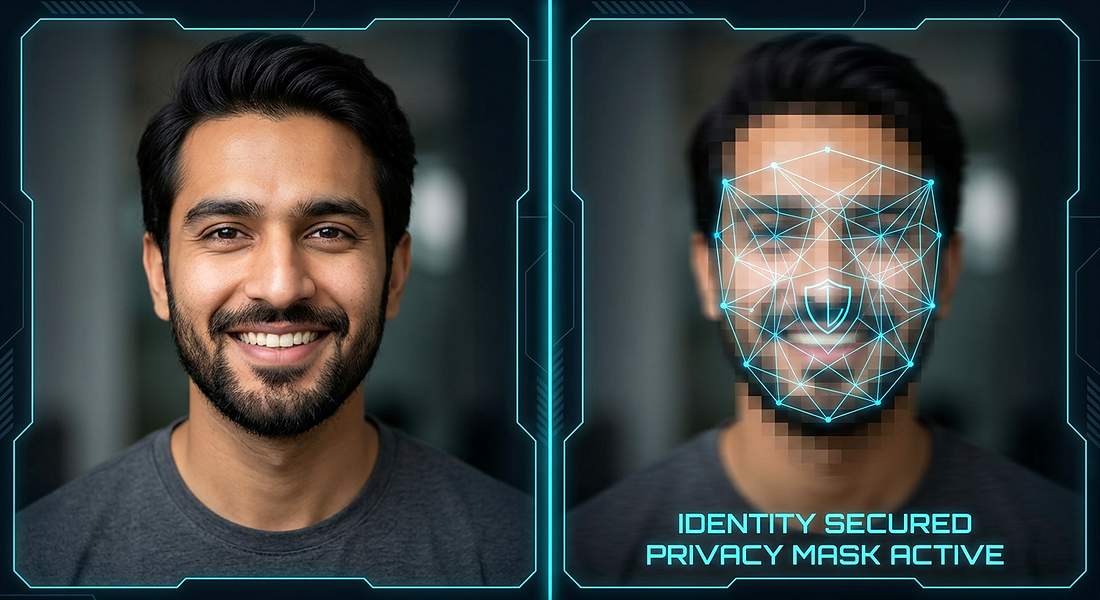
Why Blurring Faces Matters in 2026
You might think your personal social media account is private, but images can be screenshotted, saved, and shared in seconds. Here are the main reasons to blur faces before posting:
- Protecting Children: Never post clear photos of other people's children without explicit permission.
- Workplace Privacy: If you are posting a photo from your office, your colleagues might not want to be on your public LinkedIn feed.
- Sharing Evidence or Footage: If you are uploading dashcam footage or security camera clips to YouTube to report an incident, bystanders and license plates should always be blurred.
- Avoiding Deepfakes and AI Scraping: In 2026, AI bots scrape the internet to train facial recognition models. Blurring your face reduces your digital footprint.
How to Blur a Face in 3 Steps
Most people think you need Photoshop to do this. You do not. You can do it right in your browser without installing anything or uploading your private photos to a stranger's server.
- Open our free Blur Face tool. Because it is 100% client-side, your photos never leave your device.
- Upload the image you want to edit. The tool will automatically detect faces, or you can manually draw a box over the area you want to hide.
- Choose your effect: a smooth blur, a pixelated mosaic (censorship effect), or a solid black bar.
- Click Download. The image is processed instantly using WebAssembly and saved to your device.
Protect privacy instantly. No uploads, no sign-ups, 100% free.
Blur Faces NowBlur vs. Pixelate: Which is Better?
Both methods hide a face, but they do it differently. Which one you choose depends on the context of the photo.
| Method | How it works | Best for |
|---|---|---|
| Blur (Gaussian) | Softens the image, spreading pixels out to create a fuzzy, out-of-focus look. | Aesthetic photos, social media posts, YouTube vlogs. |
| Pixelate (Mosaic) | Groups pixels into large, blocky squares, completely destroying the fine details. | News broadcasts, evidence footage, showing "censorship" clearly. |
| Black Bar | Draws a solid rectangle over the face. | Documents, formal reports, and high-security scenarios. |
Do not forget about EXIF Data
Blurring the face is only half the battle. Your photo still contains hidden EXIF data, including the exact GPS coordinates of where you took the picture. Before you upload any image to the web, run it through our EXIF Editor to strip the location data.
Strip hidden location data from your photos.
Remove GPS DataTools mentioned in this article
Frequently asked
Is it legal to post photos of people in public without blurring their faces?
In many countries, taking photos in public is legal, but publishing them (especially for commercial use) can require consent. If you are in the EU, GDPR gives individuals the "right to be forgotten." Blurring faces is the safest way to avoid legal issues.
Can I blur a face on my phone?
Yes. Our blur tool works entirely in your mobile browser (Safari on iOS, Chrome on Android). You do not need to download an app. Just upload the photo, tap to blur, and download.
Does the tool upload my photos to a server?
No. The blurring process uses HTML5 Canvas and WebAssembly running locally on your device. Your photos never leave your phone or computer, making it perfectly safe for private images.
What is the best way to blur a license plate?
Use the pixelate or solid block tool. Blurring a small object like a license plate can sometimes leave the numbers visible. Pixelation guarantees the information is destroyed.