Video Upscaler: enlarge video in your browser
Upscale any video 2x, 3x or 4x, or target a specific resolution like 1080p or 4K. Supports MP4, WebM, MOV, and 3GP. Nothing is uploaded, nothing is stored. Optional denoise and sharpen, keeps your audio. No sign-up, no watermark.
- 100% secure and private
- Up to 4K output
- AI GPU acceleration
- No watermark
⚠️ Performance Warning
- If you don't have a graphics card (GPU), rendering will be slow. A GPU finishes short clips in seconds, a CPU can take several minutes.
- Please upload large files (close to 300 MB) one by one or in very small batches.
- Do not upscale 4K resolution for all 10 files at once. Please try batches of 2 to 5 files for 4K.
- Processing speed depends heavily on your GPU, CPU, and system memory.
- Mobile devices will be significantly slower than laptops and desktop PCs.
- 100% Secure
- No Upload
- No Storage
- No Sign-up
- Runs in Browser
- No Watermark
What is the ToolDeck Video Upscaler?
ToolDeck Video Upscaler is a free online tool that enlarges video resolution inside your browser. Choose 2x, 3x or 4x, or pick a target such as 1080p or 4K, and it sharpens edges with a GPU-accelerated model before exporting MP4 or WebM. Your video is processed on your own device, so nothing is uploaded and no watermark is added. It sharpens what is already in your video. It cannot recover detail that was never recorded.
- Price
- Free
- Account required
- No
- Video uploaded to a server
- No, processed locally with WebCodecs and WebGPU
- Watermark
- None
- Scale options
- 2x, 3x, 4x or a target of 720p, 1080p, 2K or 4K
- Input formats
- MP4, WebM, MOV, MKV, 3GP (browser dependent)
- Output formats
- MP4 (H.264) and WebM
- File limit
- Up to 300 MB and 3 minutes per file
- Speed
- Seconds on a GPU with WebGPU, minutes on the CPU fallback
Upscaling Math: What does 2x or 3x actually mean?
When you upscale a video, you are multiplying the pixel dimensions. It is important to understand the math so you don't accidentally create a file that is too massive for your device to handle.
| Original Video | Multiplier | Resulting Resolution |
|---|---|---|
| 720p (1280x720) | 2x | 1440p (2560x1440) |
| 720p (1280x720) | 3x | 4K (3840x2160) |
| 1080p (1920x1080) | 2x | 4K (3840x2160) |
| 540p (960x540) | 2x | 1080p (1920x1080) |
To save time and system memory, you can also skip the multiplier entirely and simply select a Target Resolution (720p, 1080p, 2K, or 4K) from the settings panel. The tool will automatically calculate the correct scale for your video.
Why use ToolDeck's Video Upscaler?
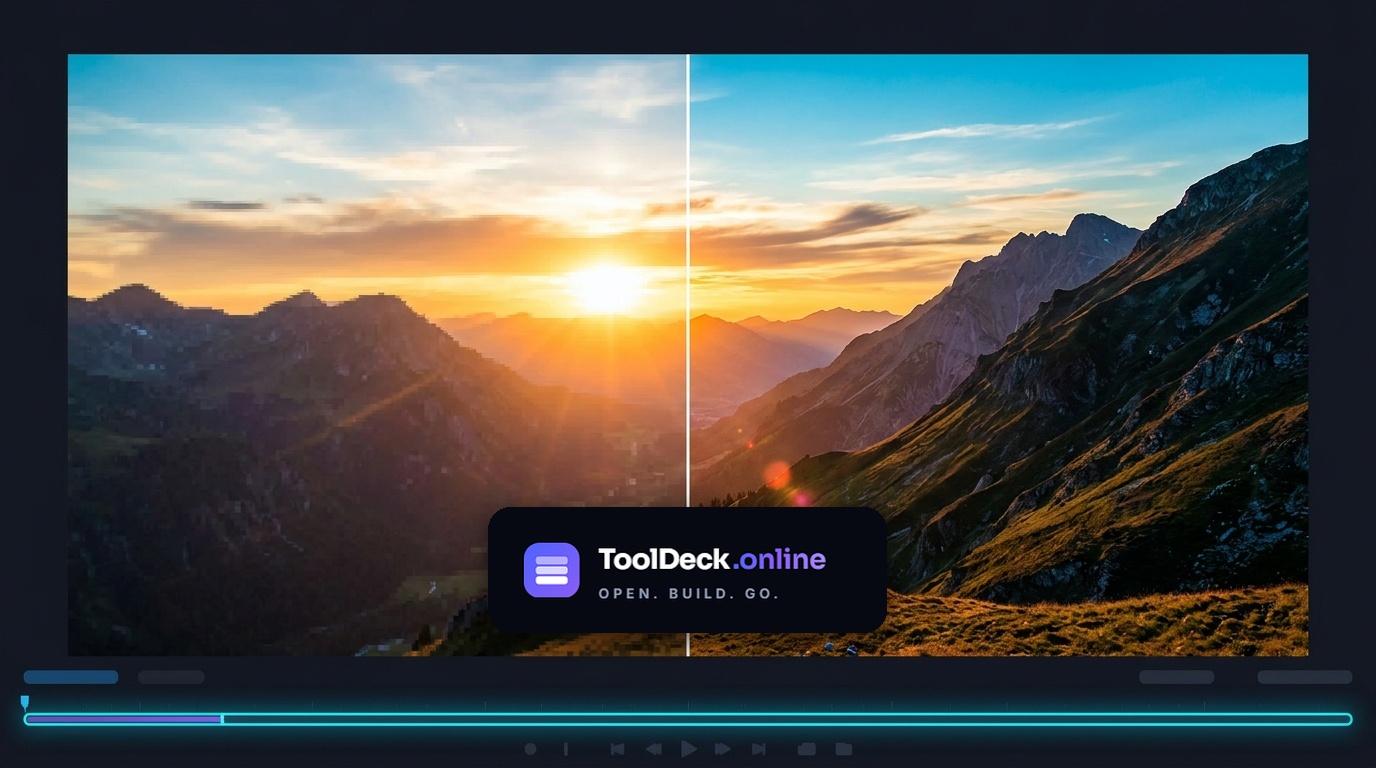
Video 720p to 4K Upscaling
True Hardware Acceleration
Instead of sending your file to a cloud server, we use your device's GPU via WebGPU and WebCodecs. This means your video is processed locally in seconds, without waiting for an upload and without your file leaving your device.
Smart AI Enhancement
We use the Anime4K neural network, optimized specifically for the web. It analyzes edges and lines to rebuild a sharper image than plain scaling, which tends to look soft. It works best on animation, screen recordings and clean footage.
Perfect for Social Media & Restoration
Whether you are upscaling an old 720p video for a 4K YouTube upload, enhancing a screen recording for a presentation, or trying to fix blurry footage from a phone, our upscaler provides a lightning-fast way to improve video quality without installing heavy software or paying monthly fees.
What it can and cannot do
An honest look so you know what to expect. Trim long clips first with the Video Trimmer, and shrink big results afterwards with the Video Compressor.
What works well
- Enlarge 720p or 1080p footage by 2x, 3x or 4x, or to a fixed 720p, 1080p, 2K or 4K target
- Sharpen soft edges and lines compared with plain scaling
- Keep the original audio track and export MP4 or WebM
- Keep your aspect ratio when you choose a target resolution
What to keep in mind
- Recover detail that was never in the source, so very blurry or heavily compressed video stays soft
- Give big gains on noisy photographic footage, since the model is tuned for edges and lines
- Process files over 300 MB or 3 minutes, or live streams
- Run fast without WebGPU: phones and older devices fall back to the CPU and can take minutes
ToolDeck vs desktop and cloud upscalers
A general comparison by type of tool. Desktop apps can go further on quality and resolution but need installation. Cloud tools need an upload and often limit free use. Exact features vary by product.
| Feature | TToolDeck | Desktop AI upscalers | Typical cloud upscalers |
|---|---|---|---|
| Video stays on your device | Yes | Yes | No |
| Runs in the browser, no install | Yes | No | Yes |
| Free to use | Yes | Partial | Partial |
| No sign-up needed | Yes | Partial | Partial |
| No watermark on output | Yes | Yes | Partial |
| GPU acceleration | WebGPU | Usually | On their servers |
| Maximum output | 4K (2160p) | Often 4K to 8K | Often capped on free plans |
| Speed | Seconds on a GPU | Depends on hardware | Upload plus queue time |
How it works
- 1
Drop your video
Choose a file or drag one onto the page. Your video never leaves your device.
- 2
Pick output size and quality
Upscale by factor (2x, 3x, 4x) or pick a target resolution like 1080p or 4K. Choose Fast, Balanced or Best.
- 3
Download the result
The AI engine rebuilds each frame on your device GPU and hands you a clean MP4 or WebM. No watermark, no upload.
Questions people ask
Does 2x upscale get 720p to 1440p?
Yes, exactly! 720p resolution is 1280x720 pixels. If you apply a 2x multiplier, both the width and height are doubled. 1280 x 2 = 2560, and 720 x 2 = 1440. This results in 2560x1440, which is officially known as 1440p or 2K resolution.
What does 720p upscaled multiplier 3x become?
A 3x upscale multiplies the dimensions by 3. 1280 x 3 = 3840, and 720 x 3 = 2160. This results in 3840x2160, which is exactly 4K Ultra HD resolution.
Can I upscale 3GP video files?
Yes. Our tool accepts almost all standard video formats, including old mobile formats like 3GP, as well as MP4, WebM, MOV, and MKV. Just drag and drop your 3GP file into the box to get started.
Can I upscale live video in the browser?
This tool is designed for saved video files, not live streams. Upscaling live video requires a dedicated streaming server. However, you can record a clip and upload it here to upscale it instantly in your browser.
Is my video uploaded anywhere?
No. The video is decoded and re-encoded entirely in your browser using WebCodecs and WebGPU. Nothing is sent to a server. Open the browser network tab while upscaling and confirm there are no outbound requests carrying your file.
How large a video can I upscale?
Up to 300 MB and 3 minutes per file. Very large or very long videos can still run out of browser memory, so trimming first with our Video Trimmer is the fastest way to keep things smooth.
How long does upscaling take?
On modern devices with a dedicated GPU, rendering takes just 5 to 15 seconds for a short clip. If your device does not support WebGPU, it will silently fall back to the CPU, which can take several minutes.
What output formats are supported?
MP4 (H.264) and WebM. MP4 is smaller and universally compatible. WebM is a modern open format some sites prefer.
Can I keep the audio?
Yes. The Upscaler copies the audio track unchanged by default. Turn off Keep audio track if you want a silent video.
What is the difference between factor and resolution modes?
Factor multiplies the source dimensions directly (2x means 720p becomes 1440p). Resolution mode targets a standard output size like 1080p or 4K and preserves your aspect ratio.
Is browser-based upscaling as good as desktop software?
We use the Anime4K neural network optimized for WebGPU. It is fast on a GPU and does a good job sharpening edges and lines. Paid desktop tools can generate more fine detail and reach higher resolutions, but they need installation. This tool is free and runs in your browser with no install.
Does it work on iPhone and Android?
Yes, in modern mobile browsers. However, mobile devices often lack WebGPU support, meaning they will fall back to the CPU path. For anything over 30 seconds, use a desktop for the best experience.
Can upscaling add detail that is not in the original video?
No. Upscaling enlarges the frame and sharpens edges, but it cannot recover detail that was never recorded. A very blurry or heavily compressed 480p clip will look larger and cleaner, not truly high definition. Results are best on clean, sharp sources.
Why is my upscaled video file bigger than the original?
A 4K frame has four times the pixels of a 1080p frame, so the output is naturally larger. If the file is too big to share, run it through our Video Compressor afterwards, or pick a lower target such as 1080p.
More free video and image tools
Explore other tools that run entirely in your browser.
- Video TrimmerCut and trim videos directly in your browser.
- Video CompressorReduce video file size without losing quality.
- Video to MP3Extract the audio track from any video file.
- Video to GIFConvert your videos into high-quality GIFs.
- Image UpscalerEnlarge photos up to 4x without blur.
- Image CompressorShrink JPG, PNG and WebP images instantly.
Your videos never leave your device
There is no upload step and no server-side video handling. The video is decoded, upscaled and re-encoded entirely in your browser using WebCodecs and WebGPU. Open the browser network tab while upscaling and confirm there are no outbound requests carrying file data. Read how we keep it private.