GTA 6: How to Upscale Game Footage to 4K Wallpapers Free
GTA 6 trailer looks blurry when you screenshot it. Learn how to extract frames, upscale to 4K, and crop for perfect wallpapers — free & private in seconds.
The GTA 6 trailer broke YouTube records. The level of detail in Vice City—from the sweat on Lucia's face to the neon reflections in the swamps—is absolutely staggering. Millions of gamers have watched the trailer dozens of times, pausing to analyze every frame for hidden easter eggs.
Naturally, you want a high-resolution wallpaper for your phone, dual-monitor setup, or Discord banner. So you pause the 4K trailer on YouTube and take a screenshot. But when you set it as your background, it looks soft, blocky, and washed out.
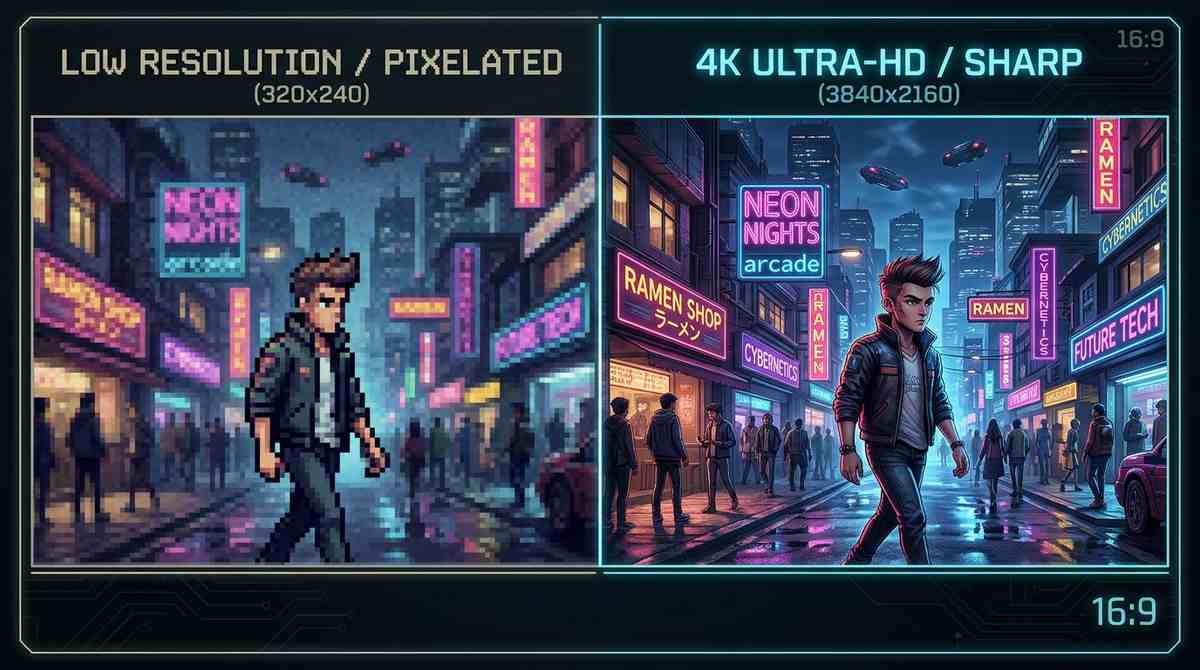
Why does it look bad? Because YouTube and Rockstar's website heavily compress video to save bandwidth. When you freeze a frame, you are capturing all those compression artifacts. The solution isn't to find a better screenshot; it's to upscale the one you already have using a neural network.
Step 1: Extract the highest quality frame possible
Before you upscale, you need the best possible source. Do not use the standard 1080p YouTube feed. Go to the Rockstar Games channel or the official website and set the quality to 4K (2160p). Wait for the video to fully buffer before pausing.
Pause at the exact frame you want, then use a tool like VLC (Shift+S) or the Windows Snipping Tool to capture the raw pixels. Save it as a PNG, not a JPG. PNG preserves the exact pixels without adding further compression to the image, giving the AI upscaler a clean canvas to work with.
Step 2: Use an AI Image Upscaler
Now we take that 4K frame and push it further. Open our Free AI Image Upscaler. Because it runs locally in your browser using WebAssembly, there is no file size limit, and you don't have to upload your screenshots to a random server. Your files never leave your device.
Drop your screenshot in. For a high-quality 4K trailer frame, select the **4x** preset. The AI will use a neural network to analyze the edges of the characters and the textures of the buildings, rebuilding the missing detail and making it look incredibly sharp.
Turn blurry video frames into crystal-clear 4K wallpapers locally.
Upscale GTA 6 ScreenshotsStep 3: Crop for your specific device
A 16:9 desktop wallpaper looks terrible on a vertical iPhone screen. Once you have the upscaled image, you need to crop it perfectly. If you just stretch the image, you ruin the aspect ratio and make the characters look distorted.
Use our Aspect Ratio Cropper. If you are making a wallpaper for a modern iPhone or Android, select **9:16**. For an ultrawide monitor, select **21:9**. The tool ensures you don't stretch the image and lose the cinematic feel of the trailer.
Perfectly crop your upscaled frames for phones, tablets, and monitors.
Crop to Any RatioThe best scenes to use for wallpapers
Not every frame makes a good wallpaper. Look for scenes with high contrast and clean backgrounds. The shot of Lucia in the prison cell has incredible lighting on her face, making it perfect for a vertical phone wallpaper once you crop it 9:16.
For desktop, the aerial shots of the Vice City skyline at sunset are unmatched. Because there is less moving action in those wide shots, the YouTube compression is less noticeable, and the AI upscaler can work its magic on the neon reflections in the water.
- Lucia in the prison cell (perfect for phone wallpapers).
- The Vice City skyline at sunset (great for ultrawide monitors).
- The mud-club scene (high contrast, very aesthetic).
- The alligator in the convenience store (funny, great for Discord).
Tools mentioned in this article
Frequently asked
Is it legal to use GTA 6 trailer screenshots as wallpapers?
Yes. Rockstar Games typically allows the use of trailer screenshots for personal, non-commercial use (like personal device wallpapers or forum avatars). You cannot sell them or use them to promote another product.
Why not just download a 4K wallpaper from Google Images?
Most "4K" wallpapers on Google Images are just 1080p images that have been stretched, resulting in a blurry mess. Upscaling your own raw frame guarantees it is actually sharp.
Does the upscaler work on gameplay clips too?
Yes, but for video clips, you should use our Video Upscaler instead of the image tool to maintain the frame rate.