Play GTA 5 on Low-End PC in 2026: Ultimate FPS Boost Guide
Struggling to run games on a low-end laptop? Learn how to optimize Windows, upscale 720p gameplay to 1080p, and compress clips for Discord — free in seconds.
Can you play GTA 5 on a laptop with integrated graphics in 2026? The short answer is: Yes, but you have to be smart about it. Most gamers think they need a dedicated GPU (like an RTX 4060) to enjoy AAA titles. But with the right settings, you can hit a stable 30-60 FPS on almost any modern office laptop.
Here is the ultimate "potato PC" survival guide. We will cover how to tweak your system, optimize your game settings, and even how to make your low-res gameplay look good on YouTube or Discord using free tools.
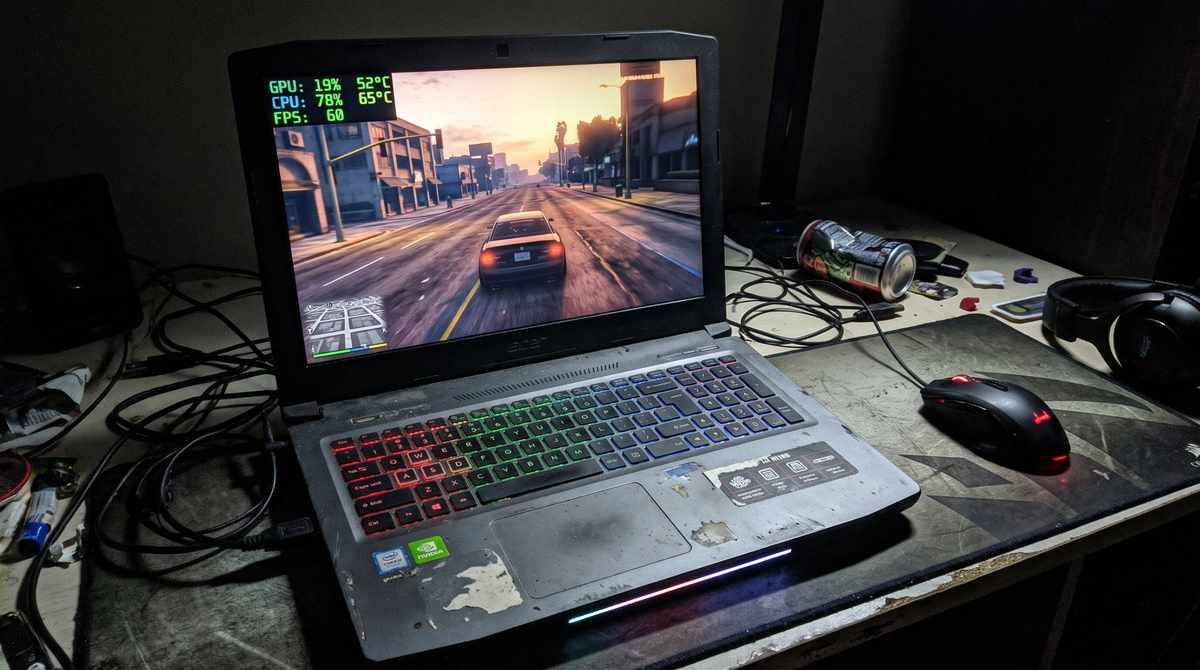
Step 1: Debloat Windows for maximum RAM
Before you even launch the game, you need to free up your system resources. Windows 11 uses a massive amount of RAM for background tasks. If you only have 8GB of RAM, you are already fighting a losing battle.
- Turn on "Game Mode" in Windows Settings.
- Disable background apps (Xbox Game Bar, OneDrive syncing).
- Change your power plan to "High Performance" or "Ultimate Performance".
- Set the game to run as High Priority in Task Manager.
Step 2: The golden rule of resolution
The single biggest performance killer is resolution. If you are running a 1080p monitor, dropping your game resolution to 720p (1280x720) can instantly double your FPS. Yes, it will look slightly blurry, but smooth gameplay is always better than a slideshow.
In GTA 5, turn off MSAA (Anti-Aliasing) completely, as it destroys performance. Set shadows and reflections to "Normal" or "Low". Textures can usually stay on "High" because they use VRAM, not CPU power.
Step 3: Upscale your gameplay for YouTube
So you recorded a great clip, but because you played at 720p, the video looks terrible when you upload it to YouTube or TikTok. The compression algorithms on these platforms make low-res video look even worse.
You can fix this using our AI Video Upscaler. Drop your recorded gameplay into the tool, and it will use WebGPU to run a neural network on your graphics card. It analyzes the edges of the game textures, removes blocky compression artifacts, and rebuilds the missing pixels to make it look like it was recorded in 1080p.
Make your 720p game clips look crisp and clear for YouTube.
Upscale Gameplay to 1080pStep 4: Compress your clips for Discord
Discord has a strict 10MB (or 25MB for Nitro) upload limit. If you record a 2-minute GTA 5 clip, the file size will likely be over 100MB. If you try to upload it, Discord will reject it or heavily compress it into a pixelated mess.
Use our Video Compressor to shrink the file size before sending it to your friends. By adjusting the bitrate and using the H.264 codec, you can bring a 100MB clip down to 15MB without a noticeable drop in quality.
Shrink your MP4 files to fit under Discord’s upload limit.
Compress Video for DiscordTools mentioned in this article
Frequently asked
Can you play GTA 5 on integrated graphics?
Yes, but you need to lower your resolution to 720p and turn most graphics settings to Normal or Low. You should aim for a stable 30 FPS, which is perfectly playable.
How do I make my low-res gaming videos look better?
You can use an AI video upscaler. Tools like ToolDeck can take a 720p video and use WebGPU to sharpen it and add detail, making it look like a native 1080p clip.
Why does my game stutter even with high FPS?
Stuttering is usually caused by a lack of RAM or a slow hard drive. Make sure your game is installed on an SSD, and close all background applications before playing.