Free PDF Editor Online: Edit, Sign & Redact PDFs Without Uploading Them
Edit the text already in your PDF, add text, signatures, images and redactions, then reorder, rotate, merge and split pages. Your file never leaves your device. Add your own watermark, edit the document metadata and save a clean PDF with no ToolDeck branding. No sign-up.
A private alternative to iLovePDF, Smallpdf and Sejda.
- No upload, no sign-up
- Edit existing text
- Permanent redaction
- No watermark added
Drop a PDF here
Edit text, sign, watermark, merge, split, extract. Everything on one screen.
- 100% Secure
- No Upload
- No Storage
- No Sign-up
- Runs in Browser
- No Watermark
How do I edit a PDF online for free without uploading it?
Drop your PDF into the editor above, tap the text you want to change or pick a tool (add text, highlight, sign or redact), then press Save PDF. It takes about a minute and needs no account. The editing happens inside your browser, so your file is never uploaded.
Every PDF editing tool in one window
ToolDeck PDF Editor is a free online PDF editor that runs in your browser. It combines the tools people usually need three or four separate websites for: edit existing text, add text, highlight, redact, place images, sign, rotate, delete, reorder, merge, split, watermark, extract text and edit metadata. Your PDF is never uploaded.
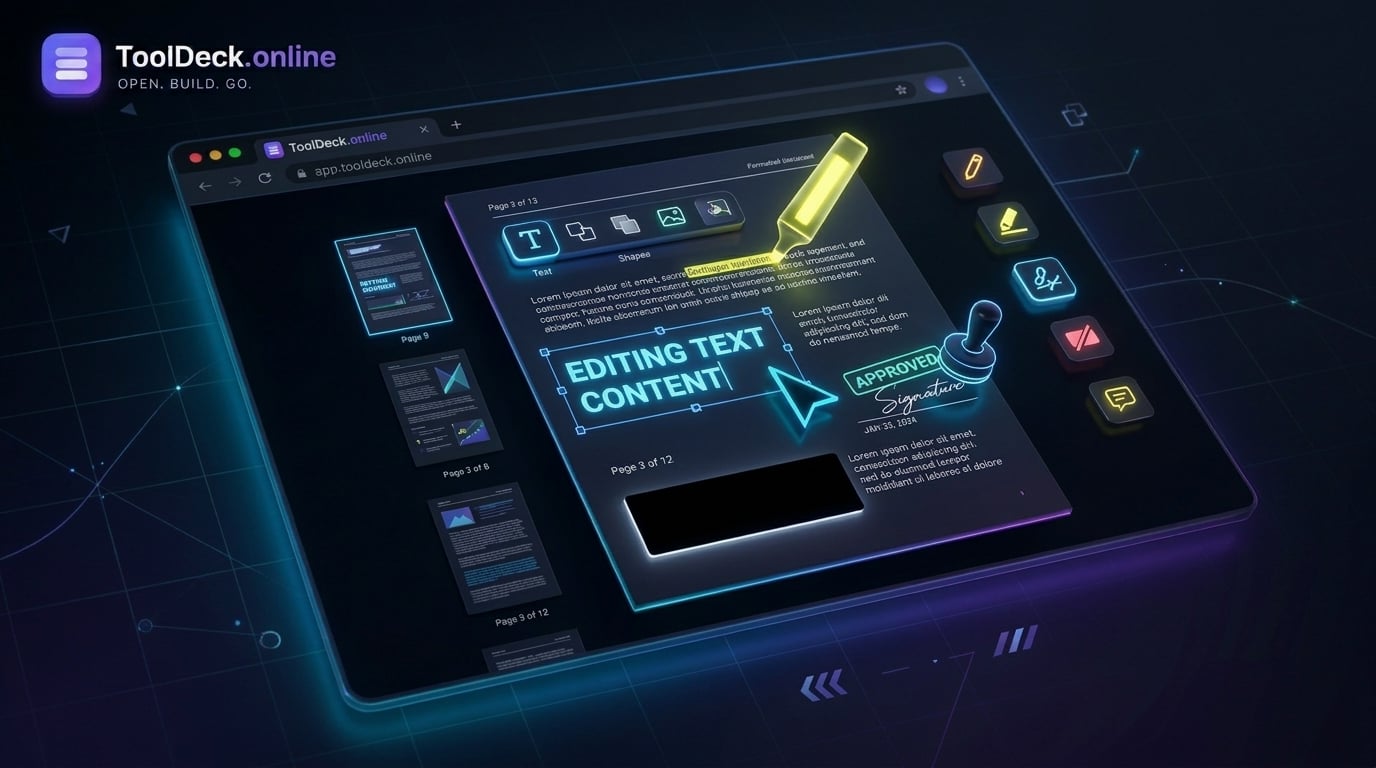
Edit text
Change the words already in the PDF
Add text
Type anywhere, any size and colour
Highlight
Mark key lines in yellow
Redact
Black out sensitive data for good
Image
Place a PNG or JPG logo or photo
Sign
Draw or upload your signature
Rotate
Turn any page 90 degrees at a time
Delete pages
Remove pages you do not need
Reorder
Drag thumbnails into a new order
Merge
Add other PDFs into this one
Split
Cut the result into parts of N pages
Watermark
Stamp your own text on every page
Extract text
Copy the text of every page at once
Metadata
Set title, author, subject, keywords
Don’t trust us: check that your PDF is not uploaded
Any editor can claim to be private. You can test it yourself in two minutes with the tools already built into your browser. This works on any PDF site, so you can compare us with other editors.
- Open your browser developer tools (F12, or Cmd+Option+I on a Mac) and choose the Network tab.
- Tick "Preserve log" and clear the list, so you start from an empty view.
- Load your PDF, make an edit and press Save PDF.
- Look at the requests. You will see the page's own scripts and the PDF.js library files load from a CDN. You will not see a POST or PUT request carrying your PDF.
- Optional: after the PDF has opened, set the Network throttling to "Offline" and keep editing and saving. It still works, because nothing needs a server.
All PDF tools
19 free PDF tools: flatten, edit, merge, split, compress, convert, rotate, sign, protect and more. Nothing uploaded, ever.
Flatten PDF
Lock forms, annotations and signatures into the page
PDF Editor
You are hereEdit text, sign, redact, watermark and reorder pages
PDF to Word
Convert PDF to editable Word .docx
Merge PDF
Combine multiple PDFs into one file
Image to PDF
JPG, PNG, WebP photos into a PDF
Word to PDF
Turn Word .docx into a clean PDF
Split PDF
Split a PDF by page, range or every N
Compress PDF
Reduce PDF size for email and forms
PDF to JPG
Every PDF page as a high-quality JPG
PDF to Excel
Extract tables into editable .xlsx
PDF to PowerPoint
Turn PDF pages into .pptx slides
Rotate PDF
Rotate pages 90, 180 or 270 degrees
Unlock PDF
Remove the password from a PDF you own
Protect PDF
Add a password to any PDF
Extract Images
Pull every embedded image out
OCR PDF
Read scanned PDFs into editable text
Watermark PDF
Add text watermarks to pages
Sign PDF
Draw or type your signature on a PDF
HTML to PDF
Turn a web page or HTML into a PDF
ToolDeck vs iLovePDF and other online PDF editors
iLovePDF, Smallpdf, Sejda and most web PDF editors process your document on their servers. ToolDeck does the work in your browser instead, so the file never leaves your device. You also get text editing, signing, redaction and page tools in a single editor rather than a separate page for each job.
| Feature | TToolDeck | iLovePDF | Most other online editors |
|---|---|---|---|
| Your file stays on your device | Yes | No | No |
| Copy of your document on a server | None | Deleted after about 2 hours | Varies |
| PDF editing is free to use | Yes | Listed as a Premium feature | Partial |
| Edit the text already in the PDF | Yes | Adds new text, images, shapes | Partial |
| Add text, images and highlights | Yes | Yes | Yes |
| Edit, redact, sign, reorder, merge, split and watermark in one editor | Yes | Separate tools | Varies |
| Desktop and mobile apps | No | Yes | Varies |
| Number of PDF tools | 19 | 30+ | Varies |
Based on publicly available information; features and policies can change. iLovePDF, Smallpdf, Sejda and Adobe Acrobat are trademarks of their respective owners and are not affiliated with ToolDeck.
How it works
- 1
Drop your PDF
Choose a file or drag one onto the page. The PDF is opened and every page is rendered in your browser using PDF.js. Nothing is uploaded.
- 2
Edit text, pages and annotations
Tap text on the page to edit it, or press Move to reposition it. Pick a tool to add text, highlights, images, signatures or redaction boxes. Drag thumbnails to reorder pages, and add other PDFs to merge them in.
- 3
Save the finished PDF
Set the metadata if you want, then click Save PDF. pdf-lib rebuilds the document on your device with your changes and downloads it. No ToolDeck watermark, no sign-up, no upload.
Everything you get for free
Edit existing text
Tap any line of text already in the PDF, retype it and press Enter. To reposition it, tap the text, press Move, then drag. Fix typos, update dates and change names without a Word conversion.
Text annotations anywhere
Tap any spot on the page and type. Change the font size and colour at any time. Tap or double-click to edit, and drag to reposition.
Highlights and true redaction
Drag to highlight key figures in yellow, or drag a black box over anything you want gone. Pages with redactions are saved as flattened images, so the covered text is permanently removed from the file.
Images and signatures
Insert any PNG or JPG, or draw a signature with your mouse or finger. Resize by dragging. Ideal for signing contracts, invoices and NDAs.
Drag-and-drop page management
Drag thumbnails to reorder pages, rotate individual pages 90 degrees at a time, or delete pages you do not need. Thumbnails update live.
Merge, split and watermark
Add other PDFs and their pages appear in the sidebar straight away. Split the finished document every N pages. Stamp your own watermark text on every page.
Extract text and edit metadata
Copy all the text from every page in one click. Set the title, author, subject and keywords of the exported document.
Nothing uploaded, ever
There is no backend. The PDF is opened, rendered, edited and re-saved entirely on your device using PDF.js and pdf-lib. Your documents stay on your computer.
What people use it for
Sign a contract
Load the PDF, draw your signature once, place it on the signature line, add the date as a text annotation, and save. No printing, no scanning.
Fill in a form
Add your details as text annotations on top of a flat PDF form. Works even when the form is not a real fillable form. No Acrobat licence needed.
Redact a payslip or invoice
Place black boxes over account numbers, addresses and other sensitive data before you email a document to a client or lender. The covered content is removed from the saved file.
Fix a typo in a finished PDF
Correct a wrong date, name or figure directly on the page without going back to the source file. Tap the text, retype it and save.
Fix a badly scanned document
Rotate sideways pages back to portrait, delete the blank back sides and drag pages into a clean sequence before archiving or sharing.
Combine and mark up documents
Add a receipt or an appendix to the end of a PDF, put a CONFIDENTIAL or DRAFT watermark on every page and save one clean file.
Edit PDF on Windows, Mac, Linux, Chromebook, iPhone and Android
Because the editor is a web page, the same free PDF editor works on every device with a modern browser. Nothing to download and nothing to update.
Windows
Open the editor in Chrome, Edge or Firefox. No install, no Acrobat licence, no admin rights needed.
Mac
Works in Safari, Chrome and Firefox. A handy upgrade on Preview when you need to redact, merge or reorder pages.
Linux
Any modern browser works, so there is no need to hunt for a desktop PDF editor that runs on your distribution.
Chromebook
Runs as a normal web page, which makes it a good fit for ChromeOS where desktop PDF software cannot be installed.
iPhone and iPad
Works in Safari. Fine for a signature or a quick text fix; a laptop is easier for long documents.
Android
Works in Chrome. The signature pad is especially comfortable on a touchscreen.
Questions people ask
Are my PDFs uploaded anywhere?
No. Your PDF is opened, edited and saved entirely inside your browser, and it never leaves your device. PDF.js renders the pages and pdf-lib rebuilds the file on save. The file is held in browser memory only, so closing the tab removes it, and nobody, including us, has a copy. Save your result before you close the tab.
How can I check that a PDF editor does not upload my file?
Open your browser developer tools, go to the Network tab, then load, edit and save a PDF while watching the requests. A tool that truly works locally shows no request carrying your file. You can also switch the network to Offline after the PDF has opened and confirm the editor still works. The steps are listed in the section above.
Is the PDF editor really free, with no watermark?
Yes. ToolDeck PDF Editor has no sign-up wall, no daily task limit and adds no watermark of its own. The only limit is your device memory, because everything runs locally. The only watermark in a saved file is one you choose to add yourself.
Can I edit text that is already inside the PDF?
Yes. Choose Edit text, tap a line of text, retype it and press Enter. To reposition a line, tap it, press Move, then drag. The editor covers the original text with a white box and draws your new text in Helvetica or Times, whichever is closer to the original. It does not reflow whole paragraphs, so each line is edited on its own, and the page must be upright (0 degrees rotation).
Does editing text remove the original text from the file?
No. When you edit or move a line, the original text is hidden under a white box but still exists inside the file. If the original wording is sensitive, use the Redact tool instead, which removes it permanently.
Is redaction permanent?
Yes. Any page with a redaction box is rendered to an image with the black boxes burned into the pixels, then saved as a flattened page. The covered text no longer exists in the saved file, so it cannot be recovered. The trade-off is that text on those pages is no longer selectable or searchable. Pages without redactions are left untouched.
Is ToolDeck a good iLovePDF alternative?
If privacy and convenience matter, yes. iLovePDF processes your file on its servers and says uploaded files are deleted automatically within about two hours, while ToolDeck never uploads your PDF. ToolDeck also puts text editing, signing, redaction, page tools, merging, splitting and watermarking in one editor. iLovePDF offers more tools overall and desktop and mobile apps, so pick whichever suits the job.
Is the iLovePDF PDF editor free?
iLovePDF lists editing PDFs among its Premium features on its homepage, while several of its other tools are free. Plans and limits change, so check its pricing page. ToolDeck PDF Editor is free with no daily limit, no account and no watermark.
Can I edit a scanned PDF?
You can mark up a scan, but you cannot edit its words directly. A scan is a picture of a page, so there is no real text to tap. Run it through our OCR PDF tool first to create a text layer, then open the result here. Without OCR you can still add text, signatures, images, highlights and redaction boxes on top of a scanned page.
Can I fill in a PDF form?
Yes. Use the Add text tool to type your details on top of any form, including flat PDF forms that have no fillable fields. Add your signature with the Sign tool and save the finished file.
How do I add a signature to a PDF?
Tap Sign, draw your signature in the pad and tap Use this signature, then tap the page where it should go. You can also upload a PNG or JPG of an existing signature. Drag the corner handle to resize it before you save.
Does it work on iPhone and Android?
Yes, in modern mobile browsers. Signing, adding text and quick text fixes work well on a phone, and the signature pad suits a touchscreen. Large PDFs render slowly on phones, so use a laptop for long documents. On touch screens, reorder pages with the up and down arrow buttons.
Are password-protected PDFs supported?
Not yet. If the PDF needs a password to open, the tool cannot read it, so remove the password first and edit the resulting file. A PDF that is protected only against editing, but not against opening, usually opens fine.
Which fonts are used in the saved PDF?
Text you add or edit is saved in a built-in PDF font: Helvetica for sans-serif and Times for serif. It renders cleanly in every viewer, but characters outside the Latin set (Arabic, Chinese, Japanese, Korean) cannot be drawn and are replaced with a question mark, and the editor tells you when that happens. For those scripts, type the text in another app, take a screenshot and place it with the Image tool.
How large a PDF can I edit?
The practical limit is your device memory. On a modern laptop, PDFs around 100 MB open and save fine, while very large files or documents with hundreds of pages can be slow because every page is rendered for the preview. For big files, split the PDF first, edit each part, then merge them back.
Need just one PDF task?
Your PDFs never leave your device
There is no upload step and no server-side document handling. The PDF is opened, rendered and rebuilt entirely in your browser using PDF.js and pdf-lib. Your document, annotations, signatures and metadata stay on your computer. Use the check described above to confirm there are no outbound requests carrying file data. Read how we keep it private.